Useful Tips
1. Navigating the dataset
To initiate your exploration of the dataset, begin by selecting a functional area. You have the option to choose "Attributes" to gain insights into Experian's customer data, "BIS" for business-related information, or "Clarity" for alternative financial data concerning both customers and businesses.
Although the Clarity dataset can offer insights into general economic trends (assuming representative data), it's commonly employed as a supplementary dataset in conjunction with "Attributes" or "BIS."
Once you've made your selection and chosen a specific dataset, you can proceed to explore the data with the assistance of one or more of the following supplementary documents:
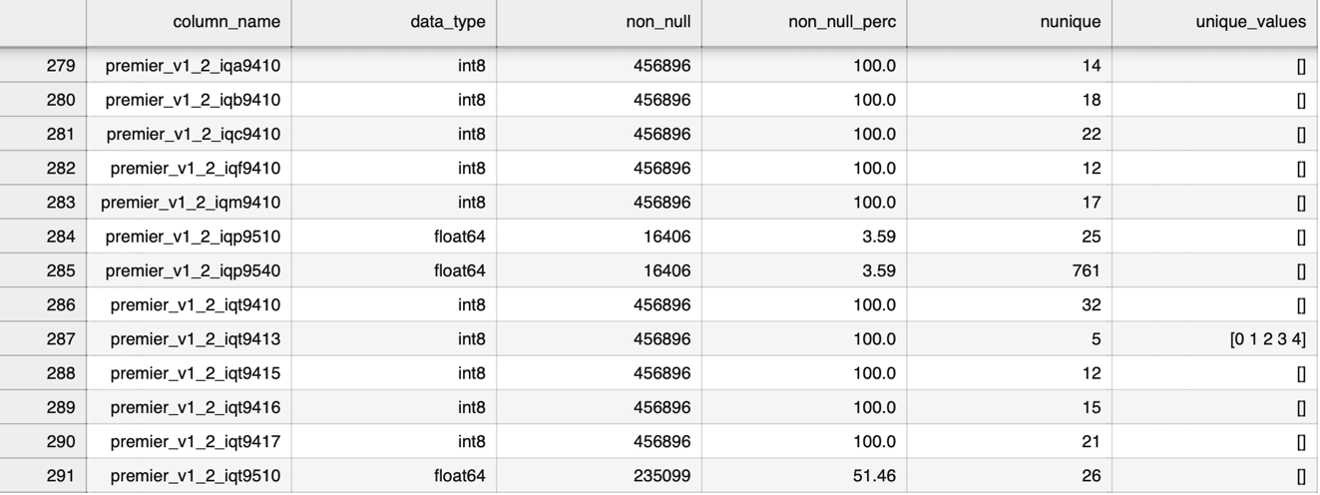
- CSV Files: For the 1% datasets, available CSV files provide a swift method to determine the availability of data pertaining to specific features of interest. Corresponding to each .dta file, there are associated CSV files that encompass details like column names, data types, counts of non-null values, percentages of non-null values, counts of distinct values, and lists of distinct values (applicable when the count is less than 10). Additionally, a consolidated Excel file for the entire dataset has been generated for user convenience. You can navigate through individual Excel files based on your desired year or opt for the comprehensive Excel file covering the entire dataset.
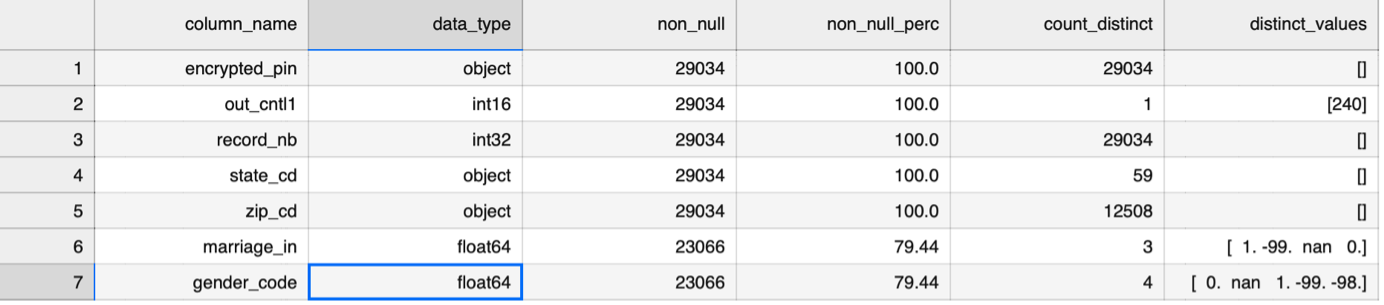
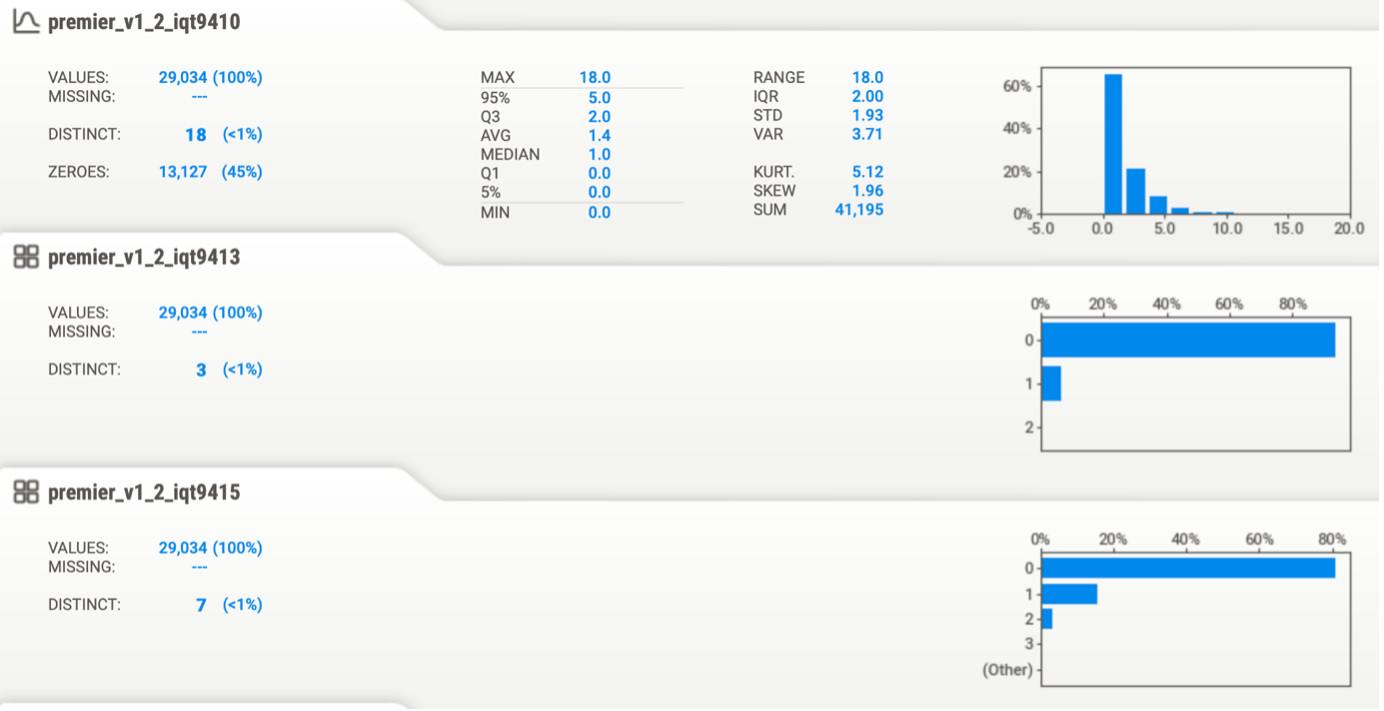
- HTML Files : HTML files created using the SweetViz library are valuable for comprehending the distribution of specific features, the structure of the data frame (size of the dataset), and the breakdown of features into categories, numerical values, and text. This is also beneficial for gaining insights into descriptive statistics.
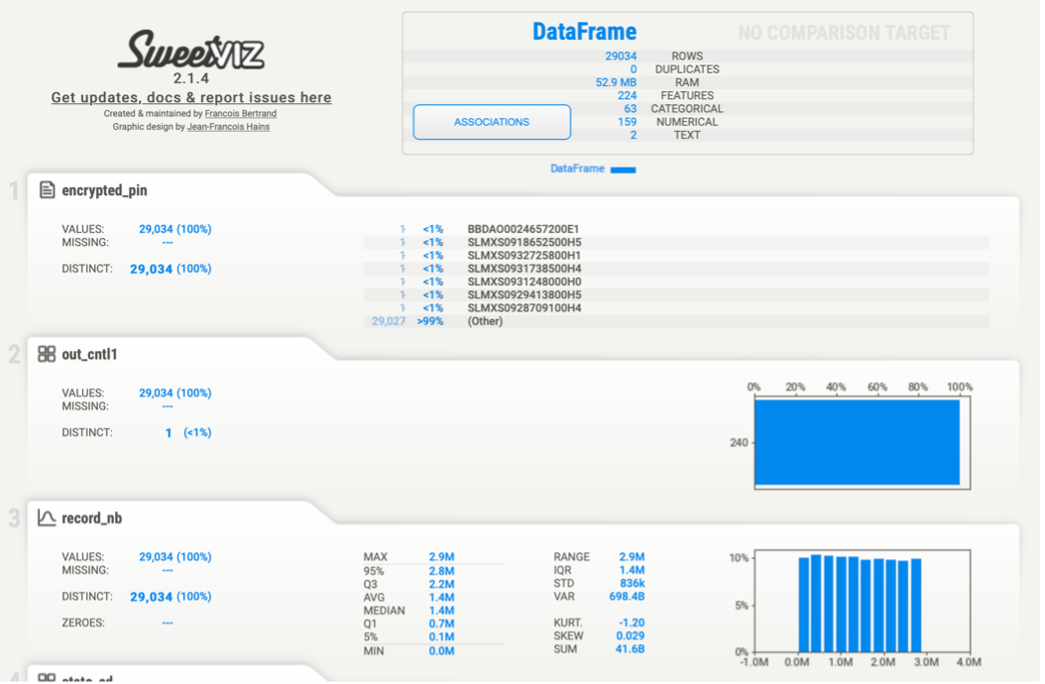
-
Word Documents: In addition to this Master document, there are four accompanying Word documents, each dedicated to a specific dataset. Additionally, there is another document covering the merged datasets, where a concise data exploration is conducted, incorporating visualizations using Tableau and Python.
-
Jupyter Notebooks: Supplementary Jupyter Notebooks have been prepared to provide insight into exploratory data analysis and visualizations.
-
Other Essential Sources: Apart from the resources mentioned above, we have also referred to the following:
- Webinar held on 5/14/2021
- Experian Documentation
2. Consumer Attributes: Effectively leveraging DSRS Documentation
Let's walk through how to effectively utilize the work done by DSRS in relation to the Attributes dataset.
Step 1: Begin by selecting an area of interest. You can refer to the 'Glossary_of_terms_for_Premier_Attributes.pdf' document for guidance on how they are grouped.
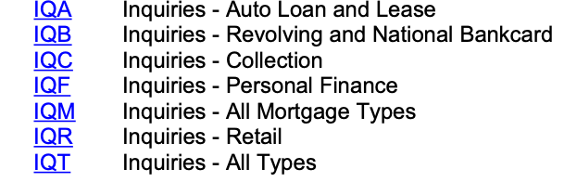
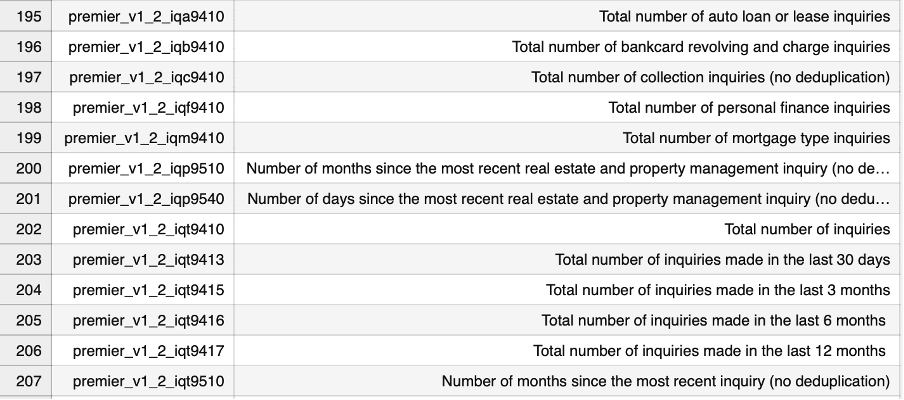
Step 2: For instance, let's assume we're intrigued by the inquiries data and wish to understand how they evolve over time and across their subtypes. To achieve this, navigate to the 'Premier_Glossary.csv' document. This resource provides an extensive list of Premier attributes within the dataset, accompanied by their corresponding definitions.
Step 3: After you've selected the pertinent features for your research, proceed to the 'Premier_75pct.csv' document. This step will enable you to verify whether the chosen features are available for exploration.
Note: We used a benchmark where we aimed for a minimum of 75% availability of the selected features in the 'Premier_75pct.csv' document.
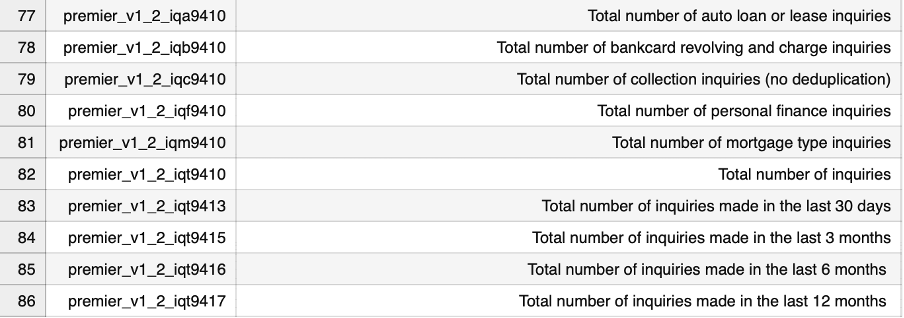
Step 4: Proceed to the 'ConsumerAttributes.csv' document to verify the availability of the selected features. This step will help ensure that the chosen features are present for exploration.
Step 5: Suppose we are focusing on the year 2018. To gain a deeper understanding of the distribution of the selected individual variables, navigate to the file named '201923664A_2018_attribute_1pct_sample_share.dta.html'. This resource will provide insights into the distribution patterns of the variables you've chosen.
3. Grouping of Columns within Premier Attributes
The table below lists columns within the "Premier Attributes" group (identified by the prefix premier_v1_2). For example, the columns premier_v1_2_all0135 and premier_v1_2_all0136 fall under the "ALL" grouping. Their shared descriptions are displayed in the second column.
| Column Name Starting With | Shared Description |
|---|---|
| ALJ | open joint trades |
| ALL | open trades |
| ALM | non-medical collections |
| ALS | student loans |
| ALX | user trades |
| AUA | auto loan or lease trades |
| AUL | open auto lease trades |
| AUT | open auto loan trades |
| BAX | open bankcard revolving and charge trades |
| BCA | bankcard revolving and charge trades |
| BCC | revolving bankcard trades |
| BCN | actual payment |
| BCX | open revolving bankcard trades |
| BRC | open credit card trades |
| BUS | open personal liable business loan |
| COL | the collector |
| CRU | credit union trades |
| FIP | personal finance trades |
| GLBDECS | deceased flag |
| HLC | credit trades |
| ILJ | open joint installment trades |
| ILN | installment trades |
| IQA | auto loan or lease inquiries |
| IQB | bankcard revolving and charge inquiries |
| IQC | collection inquiries |
| IQF | personal finance inquiries |
| IQM | mortgage type inquiries |
| IQP | the most recent real estate and property management inquiry |
| IQR | retail inquiries |
| IQT | no deduplication |
| MFX | open first mortgage trades |
| MTA | mortgage type trades |
| MTF | first mortgage trades |
| MTJ | open joint mortgage type trades |
| MTS | open second mortgage trades |
| MTX | a balance > $0 mortgage type trades |
| PIL | personal installment trades |
| REC | open recreational merchandise trades |
| REH | home equity line |
| REJ | open joint revolving trades |
| REV | revolving trades |
| RPM | open real-estate property management trades |
| RTA | retail trades |
| RTI | open installment retail trades |
| RTR | open revolving retail trades |
| STU | open non-deferred student trades |
| USE | open authorized user trades |
| UTI | utility trades |